Handling collisions in your game
Most games need to detect and handle collisions between objects. Detecting and handling collisions can be done to make objects stick on platforms and detect collisions between bullets and players or bullets and other objects.
GDevelop provides several different ways to handle collisions. You can detect collisions using Event Editor conditions and actions, or you can use Object behaviors.
The right approach depends on your game type:
- Top-down games, RPGs, arcade games: use the Collision condition, combined with the Separate objects action — and optionally the Top-Down Movement behavior.
- Platformers: use the Platformer character and Platform behaviors.
- AI navigation around obstacles: use the Pathfinding behavior.
- Realistic 2D physics (pinball, angry-birds-style, ragdolls): use the Physics 2 behavior.
- 3D games (3D platformer, FPS, third-person, racing): use the Physics 3D behavior.
- Line-of-sight, lasers, "what's in front of the player": use the Raycast condition.
Make objects solids: use the "Separate objects" action (good for top-down games, RPG...)

"Separate objects" is an action that keeps two types of objects from overlapping. It takes two object names as the argument.
- The first object name is the object moving (the player, enemy, etc.).
- The second object name is an object (or a group of objects) that are solid. For example, these objects can be the walls.
The action will then iterate over all of the objects given. It will ensure that if an object of the first kind is colliding with an object of the second kind, the object will be moved away. This is done using an algorithm called the SAT algorithm.

This action will be launched in every frame. In an event without conditions, the action is already doing the collision checks. Avoid launching this action multiple times. Doing so could reduce game performance.
Tip
The "Separate objects" action pairs naturally with the Top-Down Movement behavior: the behavior moves the character around, and "Separate objects" prevents it from going through walls and other solid objects. Put your solid objects in an object group (for example "Obstacles") and pass that group to the action.
Detect collisions
Using "Separate objects" is a good way to ensure that your objects can't move into other solid objects. You can pair it with the "Collision" condition to both detect a collision and react to it — for example, dealing damage to the player when touching an enemy, then separating them.
The sequence is important.
- Run the condition called "Collision."
- Add appropriate actions.
- Add the "Separate Objects" action.
After running the "Separate objects" action, objects are moved. Collisions between objects will no longer be able to be checked.
Note
The Collision condition uses each object's collision mask. By default it's a rectangle matching the object's dimensions, but you can edit it on a Sprite object to better fit the shape of your character. See Edit Collision Masks for details.
The Collision condition can also be inverted (right-click the condition → "Invert condition") to check that two objects are not colliding. This is useful, for example, to allow placing an object only on empty ground.
You can find usage of these conditions and actions in the examples:
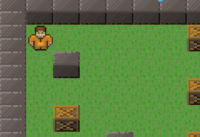
Other useful conditions for proximity checks
A few other built-in conditions are commonly used alongside (or instead of) the Collision condition:
- The Distance between two objects condition checks if two objects are closer than a given distance. It's a quick way to trigger something when the player gets near an enemy, a pickup, or a trigger area — without needing them to actually touch.
- The Cursor/Touch is on object condition reacts when the mouse cursor or a touch is over an object — useful for point-and-click games or UI buttons.
Platformer games: use the Platformer character and Platform behaviors
If you're making a platformer game, it's a good idea to use the "Platformer character" behavior. It's a ready-made platform game engine that is highly customizable. The "Platformer character" behavior handles the gravity and the collisions with the platforms.
Detect collisions in a platformer game?
In a platformer game with the "Platformer character" behavior, collisions with platforms are handled for you.
- You can still use the Collision condition to check for collisions between an object and other objects (for example, between the player and enemies) and react accordingly.
- You can use the "Is on Floor" condition to check if an object is on a platform.
- The behavior also exposes other state conditions such as "Is jumping", "Is falling", "Is on ladder", and "Is moving", which are often more practical than a raw collision check.

Enemies and AI: use the Pathfinding behavior with obstacles
When you need an object (for example, an enemy, an NPC, or an RTS unit) to automatically navigate around obstacles to reach a target, use the Pathfinding behavior.
- Add the Pathfinding behavior to the object that should move (the "agent").
- Add the Pathfinding obstacle behavior to every object that should block the path (walls, rocks, buildings, etc.). You can also set a movement cost on obstacles to make some terrain harder — but not impossible — to cross.
- Use the "Move to" action to tell the agent where to go. The behavior computes a path that avoids the obstacles.
You do not need to add the standard Collision condition to keep the agent away from the walls — the pathfinding behavior already routes around any object flagged as an obstacle.
Game with physics? Use the Physics 2 behavior
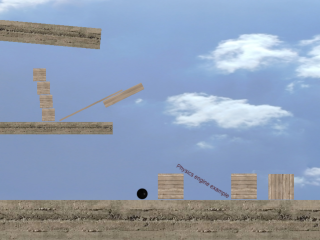
Use the Physics 2 behavior to make objects move realistically, simulating gravity, bouncing, and other real-world physical interactions. This is well suited for games like pinball, angry-birds-style projectile games, or anything that relies on natural-feeling collisions and movement.
Objects configured as Static will not move and act as immovable walls or ground. Objects configured as Dynamic are fully simulated and react to gravity, forces, and collisions.
Detect collisions with the Physics 2 behavior
When you're using the Physics 2 behavior, do not use the Collision condition that is in the Features for all objects category. The physics engine will manage all collisions by itself. The standard Collision condition won't correctly detect when objects are touching.
Instead, use the Collision condition inside the Physics 2 behavior category, which properly uses the physics engine to simulate the collisions.
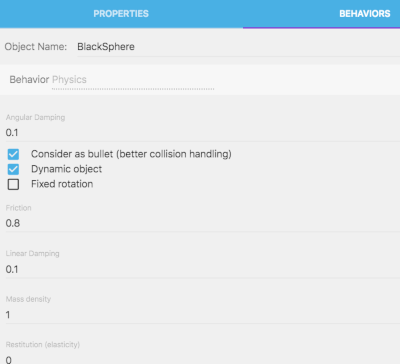
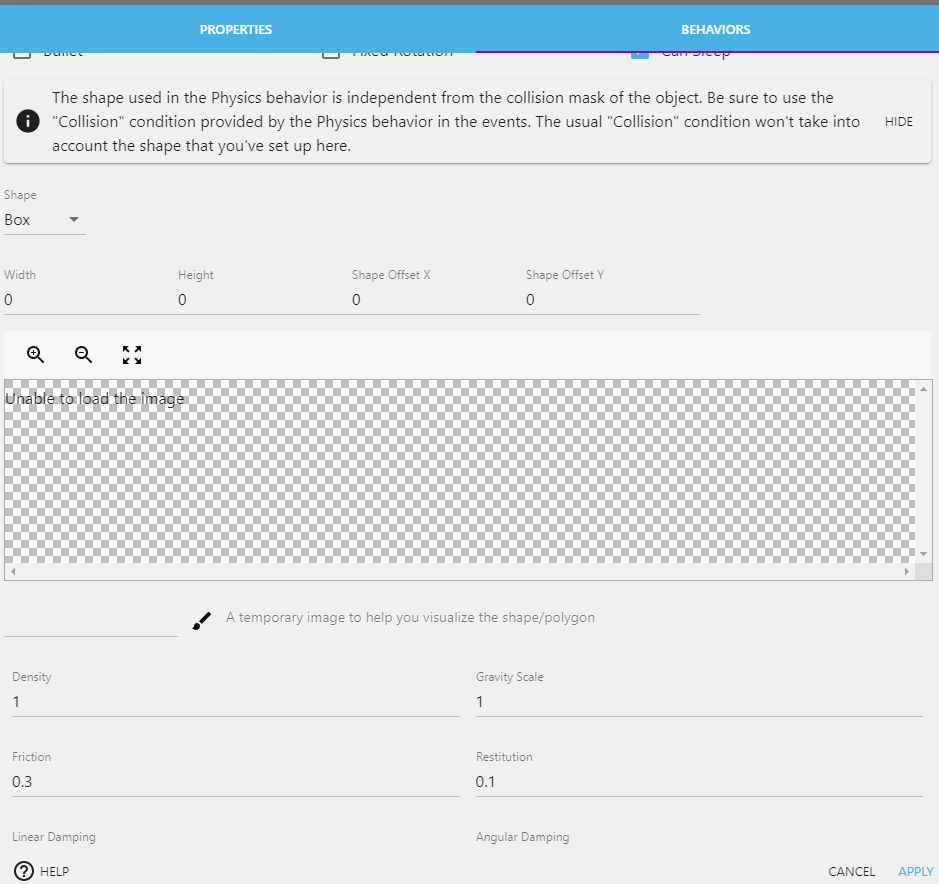
Additionally, objects with the Physics 2 behavior ignore the object's Collision Masks and instead use the collision shape configured on the BEHAVIORS tab of the object itself. This defaults to a box matching the full dimensions of the object. The shape can be changed to a circle, edge, or polygon from within the BEHAVIORS tab.
3D games: use the Physics 3D behavior
For 3D games (3D platformer, first-person shooter, third-person adventure, racing), use the Physics 3D behavior. It handles full 3D collisions, gravity and physics in three dimensions, and works on any 3D object (3D model, 3D box, etc.).
The extension provides three behaviors:
- 3D Physics Engine — the general-purpose behavior. Use it for any object that needs realistic 3D collisions: static walls and floors, dynamic crates that can be pushed, projectiles, etc.
- 3D Physics Character — a specialized behavior for player or NPC characters in a 3D world. It handles walking, jumping, slope handling and standing on dynamic objects. It's the 3D equivalent of the Platformer character behavior.
- 3D Physics Car — a specialized behavior for cars and other wheeled vehicles, with suspensions, steering and acceleration.
Detect collisions in 3D
As with the Physics 2 behavior, you should not use the standard 2D Collision condition for objects driven by Physics 3D. Use the conditions provided inside the 3D Physics Engine behavior instead:
- Collision — true on every frame two physics objects are touching.
- Collision started — true only on the frame the collision begins (useful for "play a sound when something hits the ground").
- Collision stopped — true on the frame the collision ends.
For 3D characters, the 3D Physics Character behavior also exposes an "Is on floor" condition, equivalent to the platformer one — practical for triggering jumps or knowing when the character has just landed.
Note
The collision shape used by Physics 3D is configured in the behavior properties on the BEHAVIORS tab of the object, not from the standard 2D collision mask. You can pick a box, sphere, capsule, etc., depending on the shape of your object.
Line-of-sight and lasers: use the Raycast condition
The Raycast condition (in the Features for all objects category) checks whether a straight line from a point hits an object. It's the standard way to implement:
- Line-of-sight checks for AI: "can this enemy see the player, or is there a wall in between?"
- Lasers and instant-hit weapons: trace a ray from the gun forward and find the first object it hits.
- Mouse picking in 2D and 3D: trace a ray under the cursor.
- "What's in front of me?" checks for a character.
The Raycast condition takes a starting point, an angle (or a target point), a maximum distance and a list of candidate objects. When the ray hits one of those objects, the condition picks that object so the following actions act on it, and it fills the expressions RaycastedObjectFirstX / Y (the closest hit) or the farthest-hit equivalents.
The condition can also be inverted to mean "the ray reaches its target without being blocked" — useful for AI vision checks.
Tip
See it in action! 🎮
Open these examples online: Raycast Debug View, Board Walk with Raycast, Zombie Laser.